How To Pack & Ship a Package
New to shipping or need a refresher? Read on for easy steps to ship with UPS.
1. Get Your Package Ready for Shipping
Follow these steps for a successful shipment.
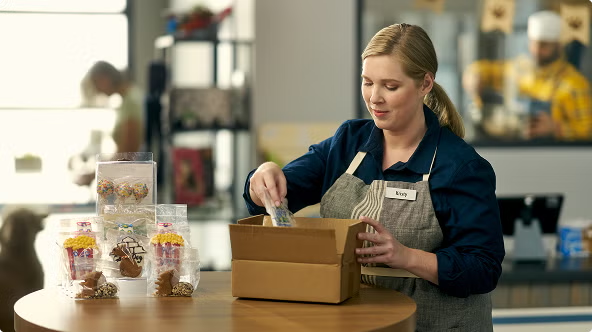
Protect Your Items With Packaging Materials
Carefully wrap items separately and use cushioning material to protect your precious cargo.
Securely Seal Your Shipping Box
Remove any old labels or shipping markings. Then, seal your box with plastic or nylon tape at least two inches wide.
Follow UPS Packaging Guidelines
For additional support and confidence in your packing, review our packaging tips.
2. Measure and Weigh Your Package
Not all packages are made the same. Let us help you get the right dimensions.
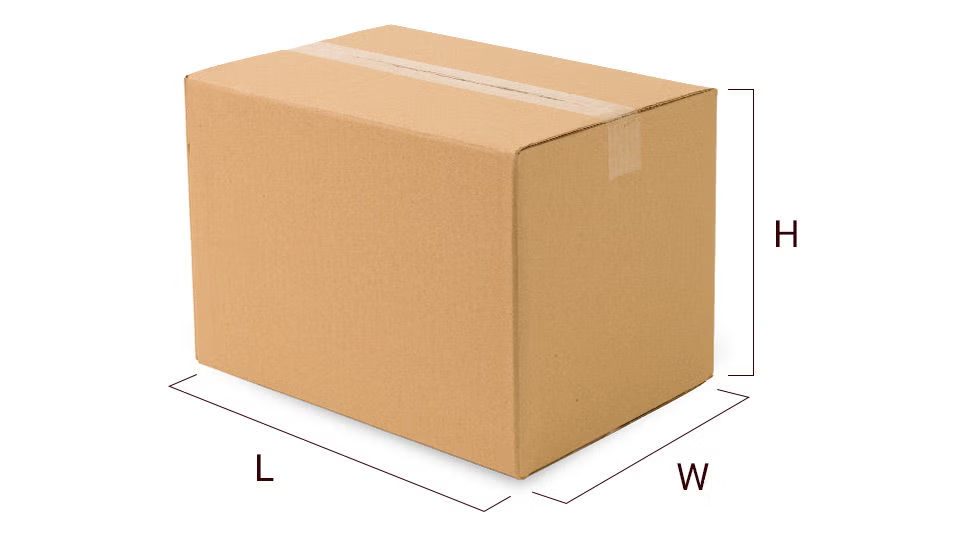
- Measure the length, width and height. The longest side of the package will be the length.
- Round up to the nearest whole number when taking your measurements. For example, 1 to 1.49 will be considered 1, while 1.5 to 1.99 will be considered 2.
- To calculate the weight, weigh yourself holding the package, then weigh yourself alone. Subtract one from the other to get the package weight, or utilize our flat rate shipping options.
- Keep these measurements handy. You’ll need them to create your shipment.
- Want to skip this step? Use our flat rate shipping supplies.
Measurement & Weight FAQ
What size and weight limits are there for packages?
Packages can be up to 150 lbs and up to 108 inches long
- If your package exceeds 70 lbs, you can follow these guidelines
- Certain packages may require freight shipping services
If you’re using small package service, your package can be up to 165 inches in length and girth combined
- To accurately determine length and girth, use the formula: Length + 2x Width + 2x Height
Learn how to avoid measurement corrections charges
How do I ship a passport or important documents?
If you’re using your own packaging to ship a valuable, thin item – such as a passport or personal record – we recommend using a small box for the best protection. If you need help finding the right size, stop by The UPS Store and we’ll help you find the perfect fit. You can also order the UPS Mini Express Box or UPS Express® Hard Pak for free here.
How do I use my electronic scale for online shipments?
Already have a UPS-approved scale? Awesome! You can connect your scale to your laptop or desktop computer to help speed things up. First, update your shipping preferences to activate the scale. Sign in using the link here and mark the checkbox Weigh My Packages With My USB-Connected Scale, then click Save.
Note: UPS CampusShip users will need to update their preferences on the CampusShip site. After logging in, select Shipping Preferences on the left-hand side and click on View/Edit to expand your Shipping Options. Mark the checkbox for Use My USB Scale and finish by clicking Update.
Once you’ve set your preferences to allow for your scale, return to the Create a Shipment page and authorize the installation of a downloaded component. After completion, the package weight will show up in the weight field. The Weigh It button will then capture the current scale reading.
Download for Windows Users* | Download for Mac or Linux Users**
*If you receive a message saying your browser doesn’t support this function, run the installer (the file above). This will place the UPS Weight Scale App in the Startup folder, running the application each time you start your computer.
** To use the file above, download the .zip file and extract the script file (make sure to note what folder you extracted it to). After extracting, find and run the script file.
3. Create a Shipping Label
Print your shipping label at home or The UPS Store.
Enter Package Origin and Destination Addresses
Be sure the addresses are correct so the package can be properly delivered. Check out our address tips on making sure your package gets where it needs to go.
Pick Your Delivery Speed and Services
Select the service options and shipping speed that best match your delivery needs.
Print Your Label
Choose your preferred payment method and print your label. If you need additional help, visit The UPS Store. If you need to reprint a shipping label, view your shipping history.
Shipping Label FAQ
What shipping labels are required for Domestic Air?
Your domestic shipments using air services require that you use a label printed from an automated shipping system (like UPS.com) or a UPS Air Shipping Document. The ASD combines your address label, tracking label and shipping record into one form. Specific ASDs are available for:
UPS Next Day Air® Early
UPS Next Day Air (can be used for UPS Worldwide ExpressSM)
UPS Next Day Air Saver
UPS 2nd Day Air A.M.®
UPS 2nd Day Air®
You can order ASDs online on the Order Supplies page and you’ll find detailed preparation instructions on the reverse side of each ASD to help you complete the form correctly.
What shipping labels are required for Domestic Ground?
Your UPS Ground shipments require that an address label containing “to” and “from” information is included inside and attached to the outside of your package. For guaranteed service, also attach a Ground tracking label. Order UPS Ground labels on the Order Supplies page.
4. Get Your Package to UPS
You’re almost done. Choose an option to get your package to UPS and we’ll do the rest.
Schedule a Pickup
We can come to you (for an additional fee). Schedule a pickup.
Find a UPS Location
Drop it off at a UPS location. Be sure to bring your identification.
Hand Package to a UPS Driver
Hand the labeled package to your friendly neighborhood driver.
Follow these steps for a successful shipment.
From shipping supplies to label printing, The UPS Store is your neighborhood one-stop shop.